How to block distracting apps on iPhone
You can block distracting apps on iPhone with Screen Time. Open Settings, tap Screen Time, then App Limits, add a limit for the apps or categories you want and turn on Block at End of Limit. For a harder stop, set a Screen Time passcode you do not know, or use a blocker app built on Apple's Screen Time framework.
Below are the three built-in options, what each one is good for, and how to keep yourself from tapping straight past them.
Option 1: Block apps with Screen Time App Limits
- Open Screen Time. Go to Settings and tap Screen Time. Turn it on if you have not already.
- Add an App Limit. Tap App Limits, then Add Limit.
- Choose the apps. Pick a whole category such as Social, or expand a category and select individual apps. Tap Next.
- Set the time. Choose how much daily time you allow. Set it to one minute if you want the app blocked almost entirely.
- Turn on Block at End of Limit. Switch on Block at End of Limit and tap Add.
- Lock it with a passcode. Back in Screen Time, tap Lock Screen Time Settings and ask someone you trust to enter the passcode.
App Limits suit apps you still want to use a little, like messaging or YouTube for one tutorial. When the limit runs out, the app icon dims and opening it shows a block screen.
Option 2: Use Downtime to block apps at night
Downtime blocks everything except the apps you allow during a schedule you set. Go to Settings, then Screen Time, then Downtime, turn on Scheduled and pick your hours, for example 10pm to 7am. Then open Always Allowed and keep only what you need, such as Phone, Messages and your alarm.
Downtime is the best built-in tool for evenings because you do not have to pick apps to block. Everything is off by default, which is what you want when you are tired.
Option 3: Silence apps with a Focus mode
Focus modes do not block apps, but they stop the notifications that pull you into them. Go to Settings, then Focus, pick or create a Focus such as Work, and choose which people and apps can notify you. You can also choose a home screen page that shows only your work apps while the Focus is on.
A Focus pairs well with App Limits: the Focus keeps the phone quiet, and the limit stops you when you go looking.
Why built-in limits are easy to ignore
The weak spot of App Limits is the Ignore Limit option on the block screen. One tap gives you another 15 minutes, and if you set the Screen Time passcode yourself, you know how to get past it. That is fine for gentle reminders and useless at 11pm when you are tired.
Two fixes help. Ask a partner or friend to set the passcode so you cannot unlock it alone. Or use a dedicated blocker that keeps the apps locked for the whole session you chose.
Block apps with Sanctum
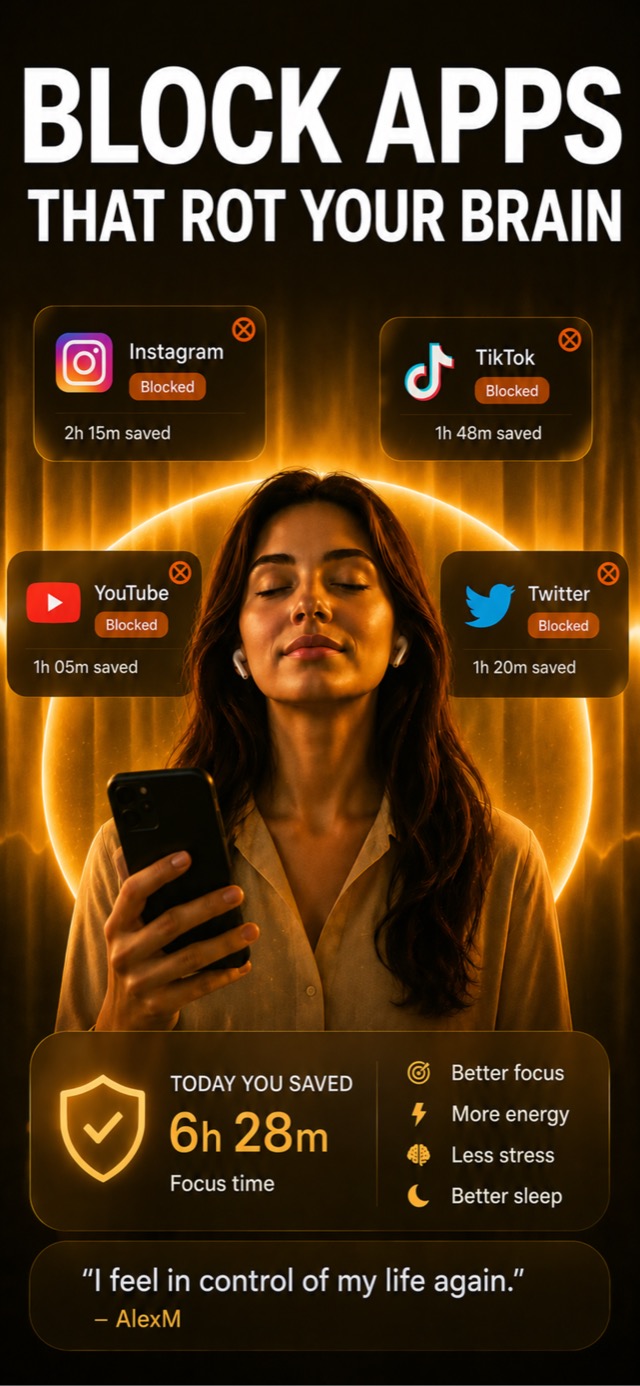
Sanctum includes an app blocker built on Apple's Screen Time framework. You pick the apps through Apple's own picker, Sanctum blocks them, and a counter shows the focus time you got back today.
The difference from a plain blocker is what you do with the time. Start a Flow state soundscape for work, or Sacred Sleep at night, and the blocked apps stay closed while you get on with it.
Which apps to block first
- Short-video apps: TikTok, Instagram Reels and YouTube Shorts.
- Any app with an endless feed, including X, Reddit and Facebook.
- News apps, if you check them more than twice a day.
- Work email on evenings and weekends.
Start with the one app you open most without meaning to. Once that is under control, add the next. If the goal is to rebuild attention more broadly, read how to reverse brain rot.
Frequently asked questions
Does blocking an app on iPhone delete its data?
No. Blocking an app with Screen Time or a Screen Time based blocker only stops it from opening. The app, your account and your data stay exactly as they were, and everything is there when the block ends.
Can someone else lock my Screen Time settings?
Yes. In Settings, then Screen Time, tap Lock Screen Time Settings and let a friend or partner type the passcode. You will then need them to approve any extra time, which makes limits much harder to skip.